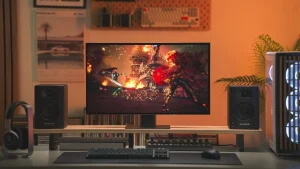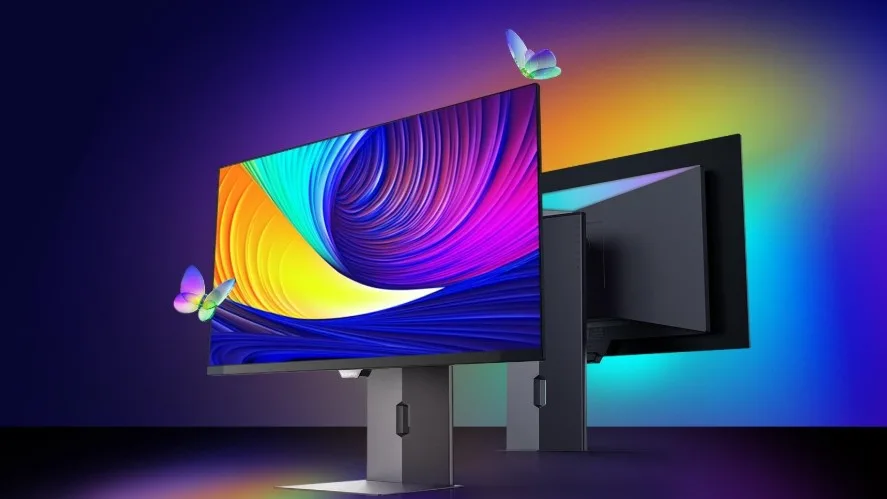
The KOORUI S2721XO is a 27-inch QHD OLED gaming monitor positioned as a budget-friendly entry into high-refresh OLED displays. With fast response times, deep blacks, and vibrant colours, it delivers excellent value for gaming and media consumption. However, like most budget OLED panels, it benefits greatly from proper tuning to avoid brightness instability, washed colours, or VRR-related flickering.
This guide covers the best SDR (Standard Dynamic Range) and HDR (High Dynamic Range) settings, based on real-world user experience and practical usage, rather than lab-only calibration.
It also includes dedicated presets for competitive gaming and cinematic viewing, along with a maintenance schedule to help preserve OLED panel health.
Table of Contents
Adjust System Settings
Before changing picture settings, ensure full access to the on-screen display options:
- Open the System / Setup menu
- Set Power Mode → Performance (or highest performance option)
This unlocks brightness, contrast, and colour controls that may otherwise remain restricted.
Configure OLED Care Options
OLED protection settings on the S2721XO are less aggressive than on flagship models, but they should still be configured properly:
- Auto Dimming Control:
On this monitor, auto dimming is relatively mild but can still cause noticeable brightness drops during static scenes. If you notice inconsistent brightness while browsing or in menus, disable this feature. - Logo / Static Brightness Protection:
Helps reduce burn-in from static HUDs or taskbars. Recommended to keep enabled for desktop use. - Screen Shift / Pixel Shift:
Enable at low strength. This protects without affecting gameplay or text clarity.
Best SDR Settings (Standard Dynamic Range)
Picture Mode
- Select User / Custom Mode
Avoid default vivid or dynamic presets, which oversaturate colours.
Brightness
This panel uses a noticeable automatic brightness limiter, so moderate levels are best:
- 42–45 → ~110 nits (dark rooms)
- 48–50 → ~140–150 nits (normal rooms)
- Avoid exceeding 60, as brightness fluctuations become more visible
Contrast
- Set to 75–80
Higher values can crush shadow detail.
Colour Temperature (Manual / User)
Adjust RGB to reduce the common “washed” look:
- Red: 101
- Green: 100
- Blue: 96
This produces warmer whites and better depth in reds and skin tones.
Gamma
- 2.2
Balances midtones and prevents raised blacks.
Sharpness
- Keep at 50 (default)
Avoid edge enhancement artefacts common on OLED subpixels.
Blue Light Filter
- Off
Preserves colour accuracy and contrast.
VRR / Adaptive Sync
- Test carefully
If you notice flickering in dark scenes during high refresh gaming, disable VRR for better stability. This model is more sensitive than premium OLEDs.
Colour Space Recommendations
- Wide Gamut / Native Mode:
Best for gaming and media content. - sRGB Mode:
Recommended for browsing, reading, or productivity work to reduce oversaturation.
Many users prefer switching between sRGB (desktop) and wide gamut (gaming).
Best HDR Settings (High Dynamic Range)
Enable HDR in your operating system or console before adjusting monitor HDR settings.
HDR Mode
- Use HDR Standard or HDR Gaming
Avoid cinematic HDR modes, which often look too dim on this panel.
Brightness
- Set to 100
Required to maximise the limited HDR peak brightness.
Contrast
- 75–80
Higher contrast tends to exaggerate black crush.
Color Temperature
- Use the same SDR RGB values (101 / 100 / 96)
Ensures consistent colour tone between SDR and HDR.
HDR Usage Notes
- Use 10-bit colour output if supported
- Set RGB range to Full
- Do not leave HDR enabled permanently on the desktop, as it can make SDR content appear flat
Preset Configurations
🎮 Preset 1: FPS-Optimised (Competitive Gaming)
Best for fast-paced shooters and esports titles.
- Picture Mode: User
- Brightness: 48
- Contrast: 78
- Gamma: 2.2
- Colour Space: sRGB
- Sharpness: 50
- VRR: Enabled if stable
- HDR: Off
Why: Improves visibility, reduces distractions, and minimises brightness fluctuation.
🎬 Preset 2: Cinematic Mode (Games & Movies)
Best for story-driven games and video content.
- Picture Mode: User
- Brightness: 55
- Contrast: 80
- Colour Space: Wide Gamut
- HDR: Enabled
- HDR Mode: HDR Gaming
- Brightness (HDR): 100
Why: Enhances colour depth and contrast while keeping tone-mapping under control.
OLED Maintenance Schedule (Highly Recommended)
✅ Every Day
- Enable Screen Shift / Pixel Shift
- Avoid leaving static HUDs or taskbars for hours
✅ Every 4–8 Hours of Use
- Allow automatic pixel refresh to run if prompted
- Avoid forcing your screen off immediately after long sessions
✅ Weekly
- Run manual pixel refresh if available
- Clean the screen gently with a microfiber cloth (dry or lightly damp)
✅ General Best Practices
- Use a screen saver after 5–10 minutes of inactivity
- Hide taskbars when possible
- Don’t use maximum brightness continuously
These habits significantly reduce long-term burn-in risk, especially on budget OLED panels.
Conclusion
The KOORUI S2721XO is one of the strongest value OLED gaming monitors currently available, delivering excellent contrast, fast response times, and solid colour performance for its price. While it lacks the advanced HDR brightness and stability of flagship OLED displays, careful calibration and mindful usage unlock a consistently enjoyable experience.
By using the recommended SDR and HDR settings, switching between FPS and cinematic presets, and following a simple maintenance routine, you can get the most performance and longevity out of this budget OLED panel.