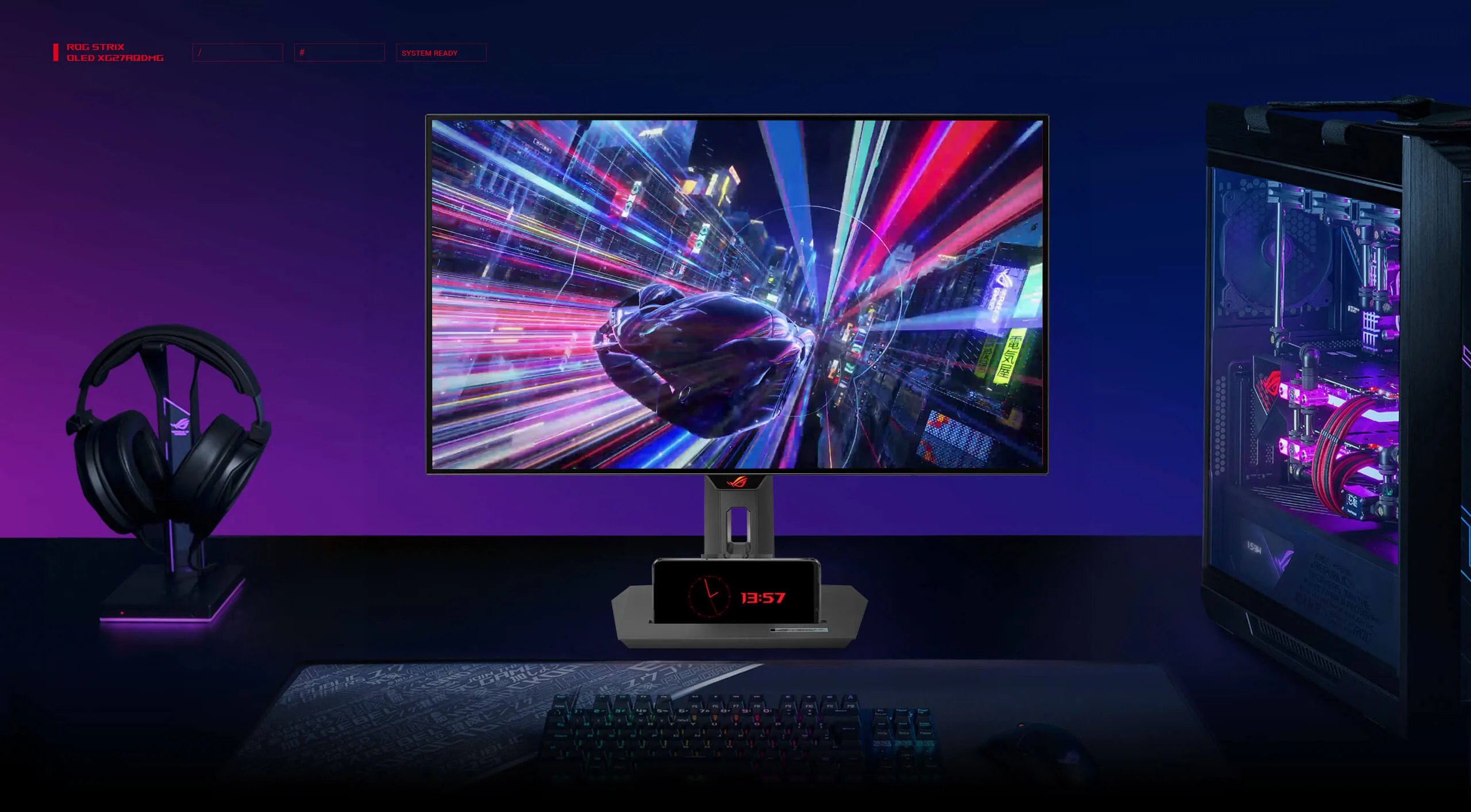
The ASUS ROG Strix XG27AQDMG is a 27-inch 1440p OLED gaming monitor designed for ultra-fast response, exceptional contrast, and rich colour performance.
To get the most out of this display, it’s important to properly optimise its SDR (Standard Dynamic Range) and HDR (High Dynamic Range) settings.
This guide provides the best configuration for PC gaming, console gaming, and general productivity usage.
Table of Contents
Here are the Best Gaming & HDR Settings for the ASUS ROG Strix XG27AQDMG OLED Monitor
Adjust System Settings
Before you begin, unlock all available picture controls:
- Open the System Setup menu
- Switch Power Setting → Performance Mode
This ensures brightness, colour, and OLED-care options are fully accessible. If your settings appear greyed out, enabling Performance Mode typically fixes it.
Configure OLED Care Options
OLED panels require a few protective features to maintain long-term image quality. These settings can be customised based on your usage:
- Auto Dimming / Outer Dimming:
Can create a subtle vignette effect. If you notice darkened screen edges, turn this off for consistent brightness. - Auto Logo Brightness:
Helps prevent burn-in from static icons or HUDs. Keep this on during desktop use. If it dims too aggressively during gaming, you may disable it. - Screen Move / Pixel Shift:
Prevents static retention by shifting the screen image slightly. Set it to low intensity or disable it when gaming, and re-enable it for general use.
Best SDR Settings (Standard Dynamic Range)
1. Picture Mode
- Switch to User Mode
This unlocks full manual control and provides neutral colour output.
2. Uniform Brightness
- Enabled
Ensures even luminance across the panel, especially useful for desktop and productivity work.
3. Brightness Levels
Choose based on your room environment:
- 37 → ~100–110 nits (dark rooms)
- 50 → ~140–150 nits (normal lighting)
- 70–75 → brighter output (well-lit rooms)
4. Contrast
- Set contrast to 80
Provides detail without causing highlight clipping.
5. Colour Temperature & RGB Balance
Use User Mode under colour temp and set:
- Red: 100
- Green: 99
- Blue: 97
This produces a comfortable and accurate white balance.
6. Gamma
- Choose 2.2
This is the standard gamma curve for realistic midtones and balanced contrast.
7. Sharpness / Vivid Pixel
- Keep at 50 or default
Higher values introduce halos and sharpening artefacts.
8. Blue Light Filter
- Off
To avoid yellow tint and colour distortion.
9. VRR & Anti-Flicker
- VRR: On (if using adaptive sync)
- Anti-Flicker: Default settings work best
Colour Space & Calibration Recommendations
For accurate colour work:
- sRGB Mode:
Use this if you want colour-accurate SDR output.
For gaming and media:
- Wide Gamut / Native:
Provides richer, more vibrant colours.
You may optionally load an ICC profile if you want tighter calibration.
Best HDR Settings (High Dynamic Range)
Before adjusting HDR in the monitor, enable HDR in your operating system or console.
1. HDR Mode
- Use Gaming HDR
This mode offers the best balance of brightness, accuracy, and highlight detail.
2. Brightness
- Set to 100
Maximises peak luminance for bright highlights in HDR games and movies.
3. Colour Temperature
- Reuse SDR settings (100 / 99 / 97)
Consistent white balance avoids colour shifting in HDR.
4. Contrast
- Leave at 80 or default
Maintains proper tone-mapping.
5. Additional Tips for HDR
- Use 10-bit colour output on your GPU or console
- Set RGB range to Full
- Make sure your game has proper HDR calibration settings applied
- If HDR appears washed out, double-check OS-level HDR brightness sliders or tone-mapping
Conclusion
With the correct SDR and HDR adjustments, the ASUS ROG Strix XG27AQDMG delivers outstanding motion clarity, deep blacks, and accurate colours. These settings maximise the panel’s brightness, protect it from long-term wear, and ensure optimal performance whether you’re gaming or working. Use SDR settings for daily tasks and fast-paced gaming, and switch to Gaming HDR when watching HDR content or playing visually rich titles.